Create and verify your account
Register, verify your email, sign in, and prepare your first workspace.
1. Create an account#
Select Start free on the landing page. Enter your name, workspace name, work email, and a strong password. The workspace contains your company’s projects, members, settings, and billing.
- 1
Enter your full name and workspace name
- 2
Use an email address you can open now
- 3
Create a password with at least 8 characters
- 4
Select Create account
 1
If you arrived through an invitation, the destination workspace is already selected; do not create another one.
2. Verify your email#
PinWid sends a single-use verification link to the address you entered. Open the message and select Verify email. The link is temporary and can only be used once.
- 1
Check Inbox and Spam
- 2
Open the PinWid verification message
- 3
Select the verification link
- 4
Wait for the Email verified result
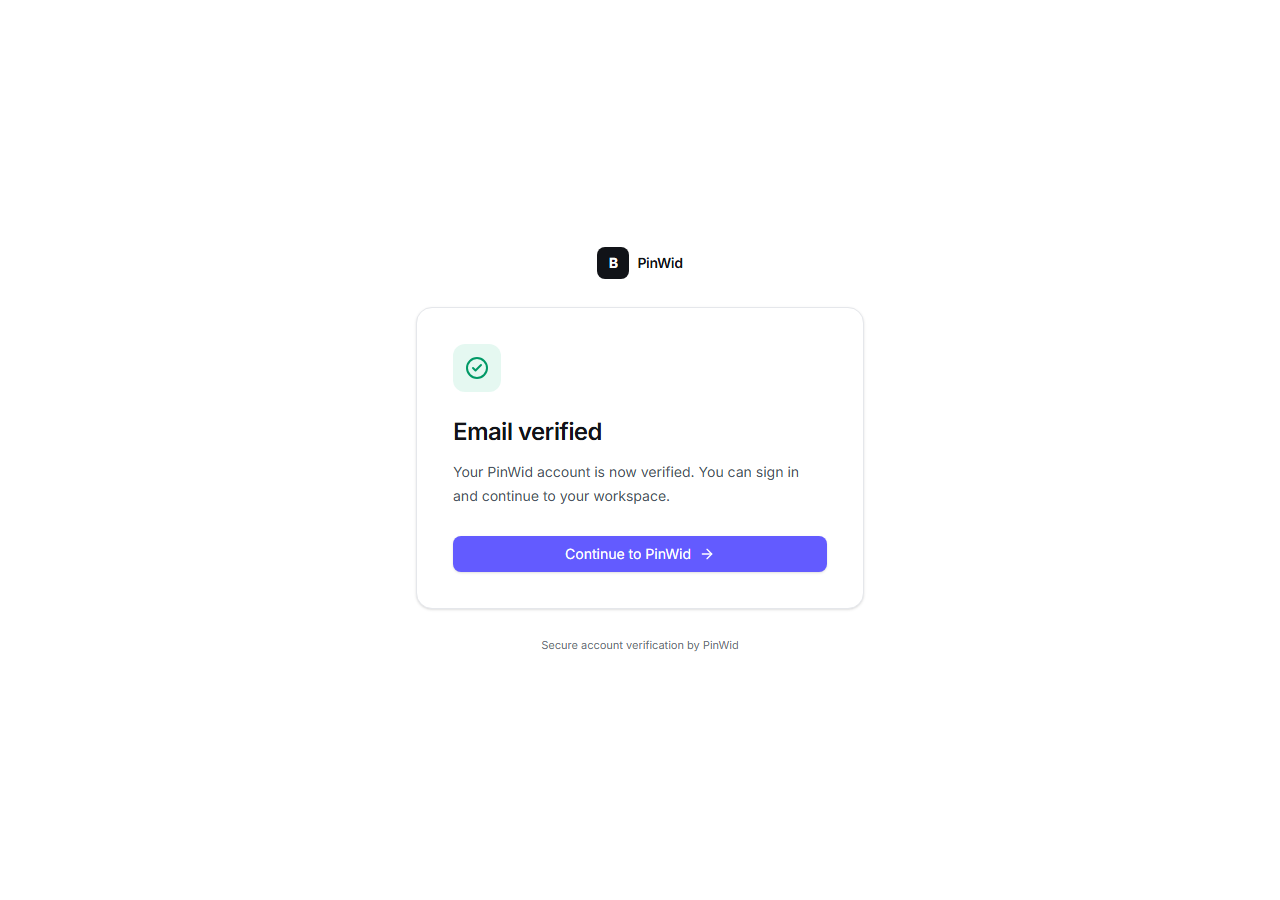 1
If the message does not arrive, enter your email on the verification page and request a fresh link.
3. Sign in#
Use the verified email and password on the sign-in page. If your organization requires SSO or two-factor authentication, complete the additional check shown on screen.
- 1
Enter your verified email and password
- 2
Complete 2FA when requested
- 3
Select Sign in
- 4
Confirm that the dashboard opens
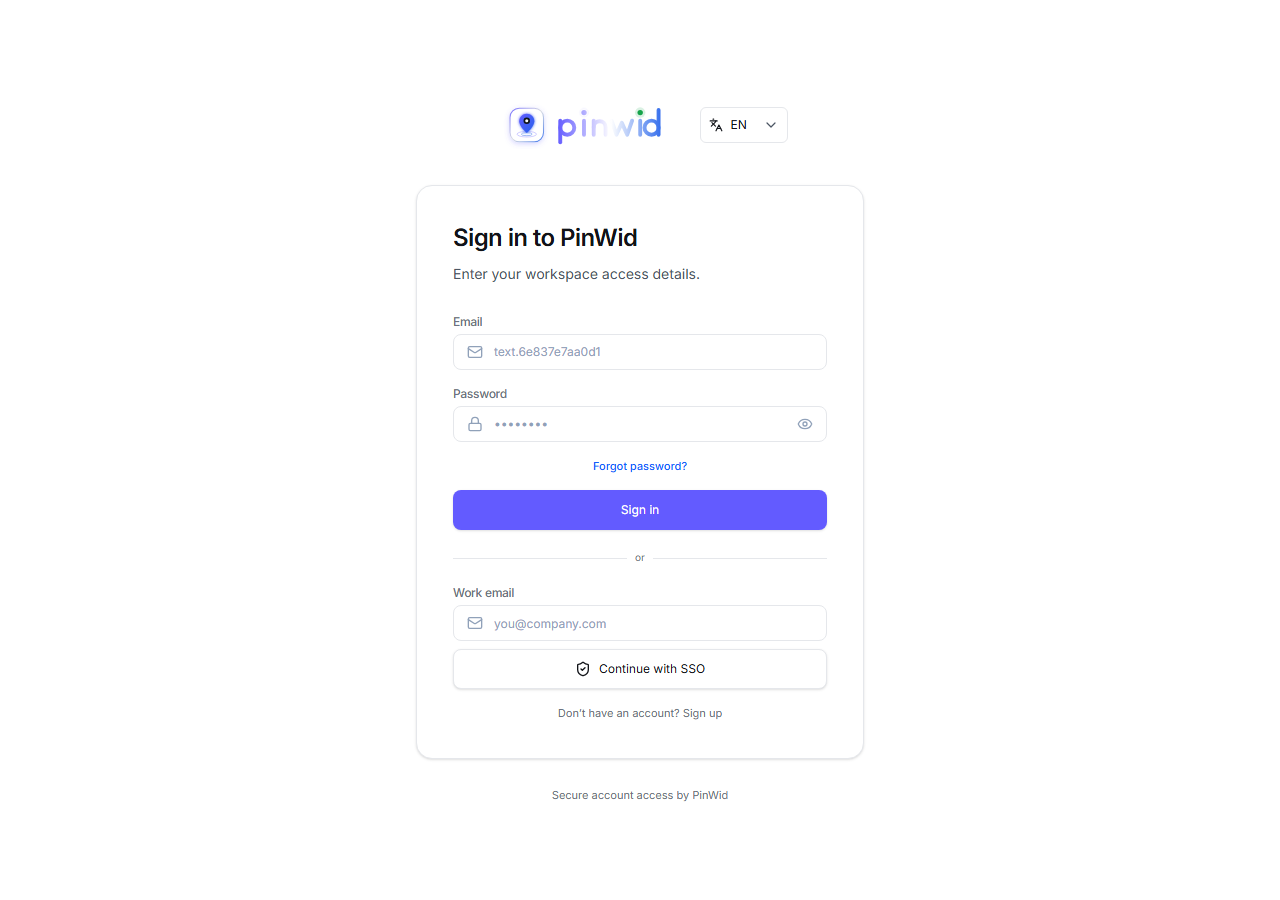 1
4. Prepare the workspace#
Confirm the workspace in the switcher, create your first project, and send a test report from a Development environment before using Production.
- 1
Confirm the workspace name
- 2
Create a Development project
- 3
Install the client widget
- 4
Submit and open one test report
You are ready when the verified account, active workspace, project, and first test report are all visible.